
Start with one growing project: a tomato in a pot, a vegetable bed or a crop in your farm. SensoFarm brings suggested crop-care steps and an AI assistant into one app. Here is how to get started and give the assistant useful context.
1. Open SensoFarm
Use the SensoFarm web app in your browser, or install the Android app from Google Play. Sign in to your account. This walkthrough follows the web app; labels and layout can differ between versions.
2. Describe your growing place
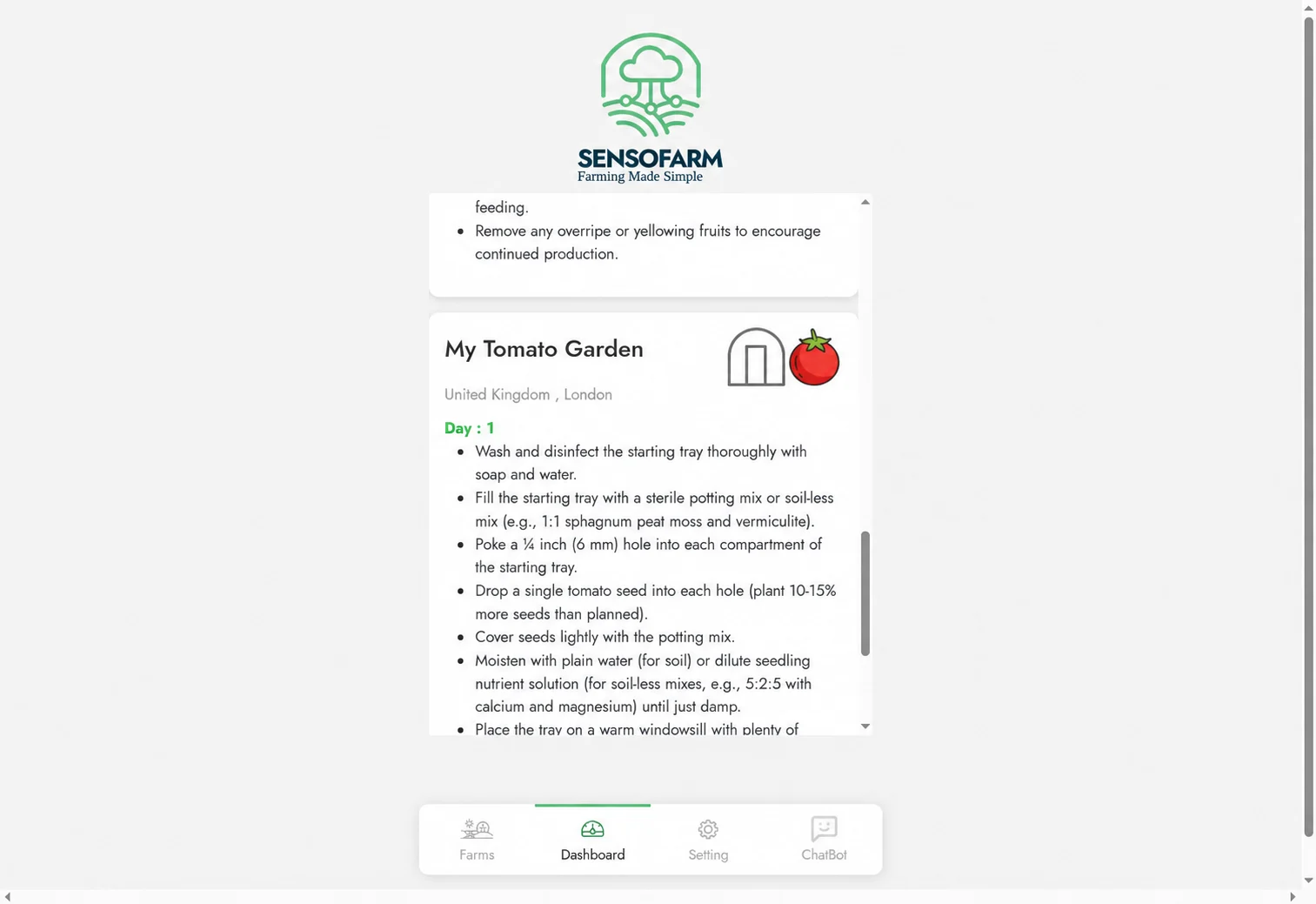
Add your location and the growing conditions requested during setup. Use a name you will recognise later, such as ‘My Tomato Garden’. Keep the information specific to that project. A balcony container and a large field can have very different care needs even when they grow the same crop.
If you do not have a soil report, the setup allows default soil values. These are assumptions, not measurements from your own soil. Use measured information when you have it, and remember that the quality of the input affects how useful the advice can be.
3. Choose a supported crop
Choose from the crops available in the app and complete the remaining setup. The selection includes tomatoes, cucumbers, eggplants, potatoes, pumpkins, strawberries and zucchini. Check the in-app list for the current choices.
If you are just learning, keep your first project small enough to observe regularly. A useful habit is to keep a separate note of the variety, planting date and any recent care changes.
4. Read your crop guidance
Open the project’s guidance and review the suggested stages and care tasks. Check what applies to your actual plant and conditions before acting. Guidance may take time to appear after a new project is created.
5. Ask a clear growing question
For a pest, disease or plant-symptom question, include the crop, what you see, when it started and how you care for the plant. Describe the growing place and recent watering or feeding. The assistant may ask follow-up questions.
Instead of only asking ‘Why are the leaves yellow?’, explain whether the affected leaves are old or new and whether you see spots or wilting. Our yellow tomato leaf checklist helps you gather these details. If you are preparing a new container, start with the tomato growing guide.
Start with your next question
You do not need to plan an entire season before opening the app. Begin with the crop you want to grow and the next decision in front of you. Open SensoFarm to set up your first growing project.